Connect MobileAction to ChatGPT
You can connect the MobileAction platform to ChatGPT and work with your app growth data through a conversation. Once connected, ChatGPT can retrieve live keyword rankings, downloads and revenue estimations, reviews, ad creatives, and Apple Ads campaign reports from your MobileAction account.
This connection is useful for ASO managers, UA managers, app growth marketers, analysts, and developers who want to explore MobileAction data, compare competitors, prepare reports, or answer ad hoc questions without writing an integration or exporting spreadsheets.
The MCP server is designed for exploration, reporting, and analysis. For production data pipelines, scheduled jobs, or BI integrations, use the MobileAction REST API. Both options draw from the same MobileAction data.
Before you begin
You will need:
- An active MobileAction API Solutions plan.
- Your MobileAction API key.
- A ChatGPT account with access to Developer mode.
- Access to ChatGPT on the web.
- Permission to create custom apps if your company manages ChatGPT through a workspace.
Treat your MobileAction API key like a password and do not share it in regular ChatGPT messages.
NOTE
Developer mode and custom MCP access may depend on your ChatGPT plan, workspace policy, and role. Custom MCP apps are currently set up through ChatGPT on the web rather than the mobile app.
Step 1: Turn on Developer mode
First, sign in to ChatGPT through your web browser.
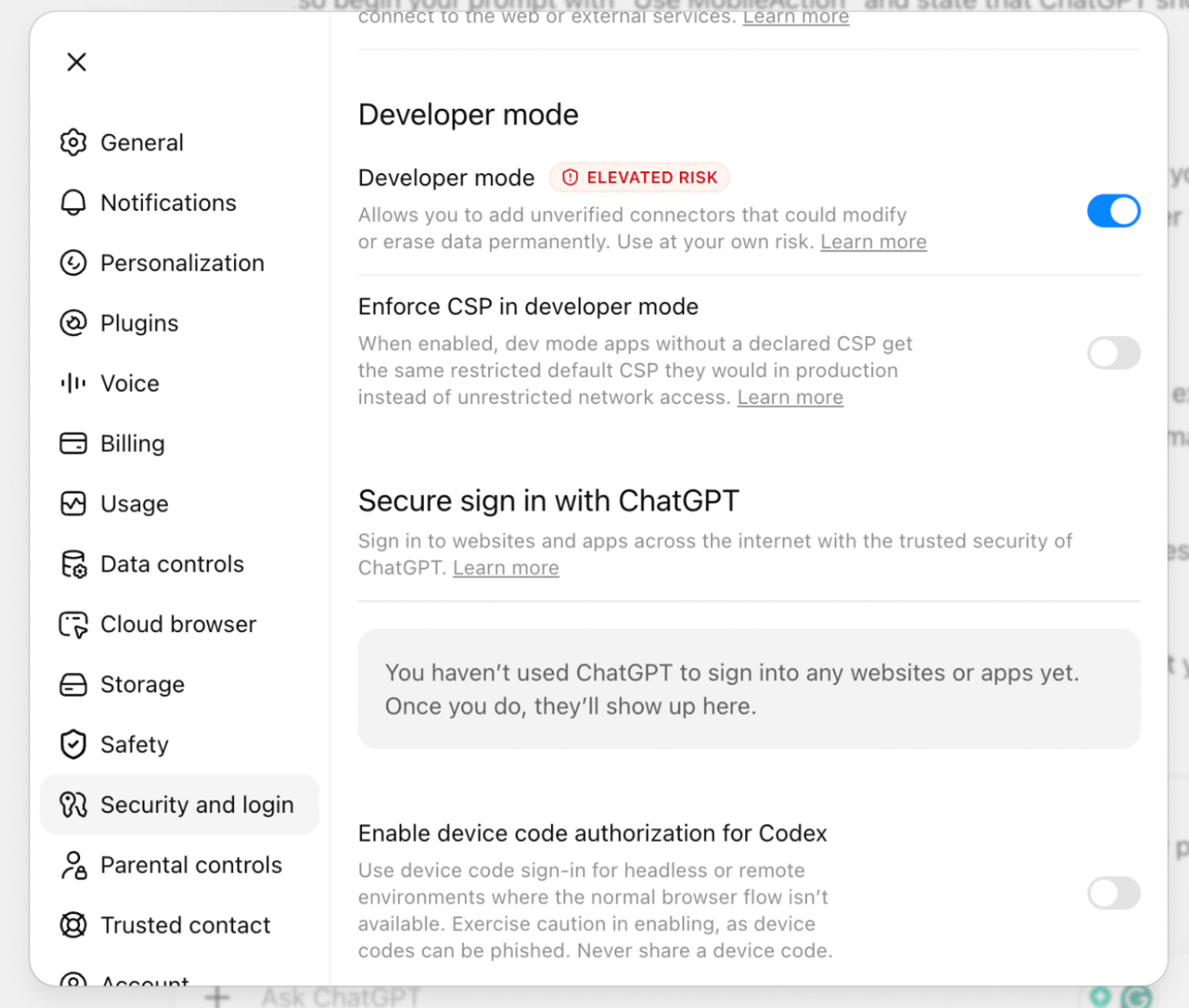
- Open your profile menu and select Settings.
- Go to Security and login.
- Find Developer mode and turn it on.
Developer mode lets you connect and test remote MCP servers in ChatGPT.
If you do not see Developer mode, check that you are using ChatGPT on the web. For managed Business, Enterprise, or Education workspaces, you may also need permission from a workspace admin or owner.
Step 2: Add the MobileAction MCP server
After turning on Developer mode, open the area where ChatGPT manages custom apps and MCP connections.
Open the ChatGPT Plugins page.
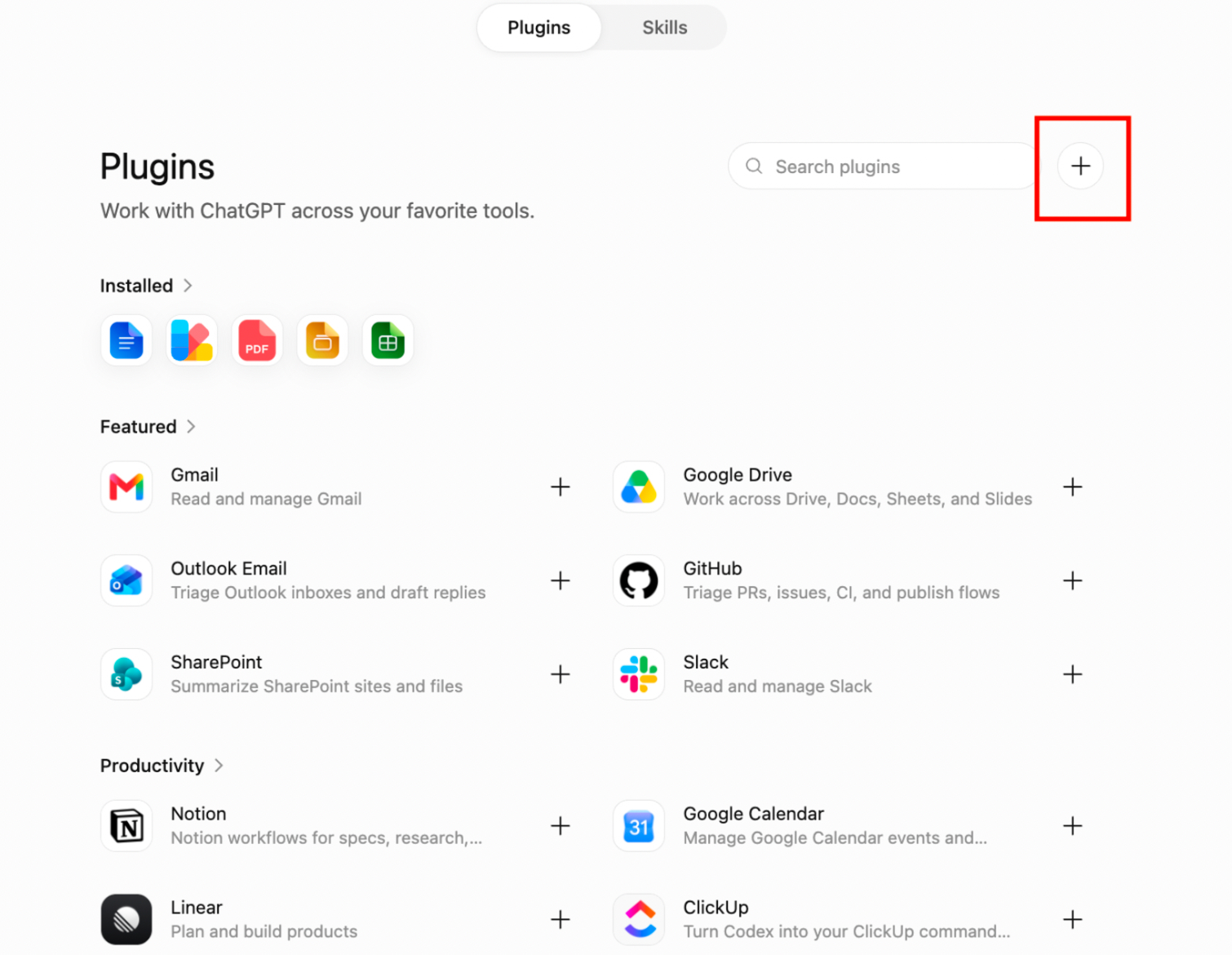
Select the
+button to create a developer-mode app.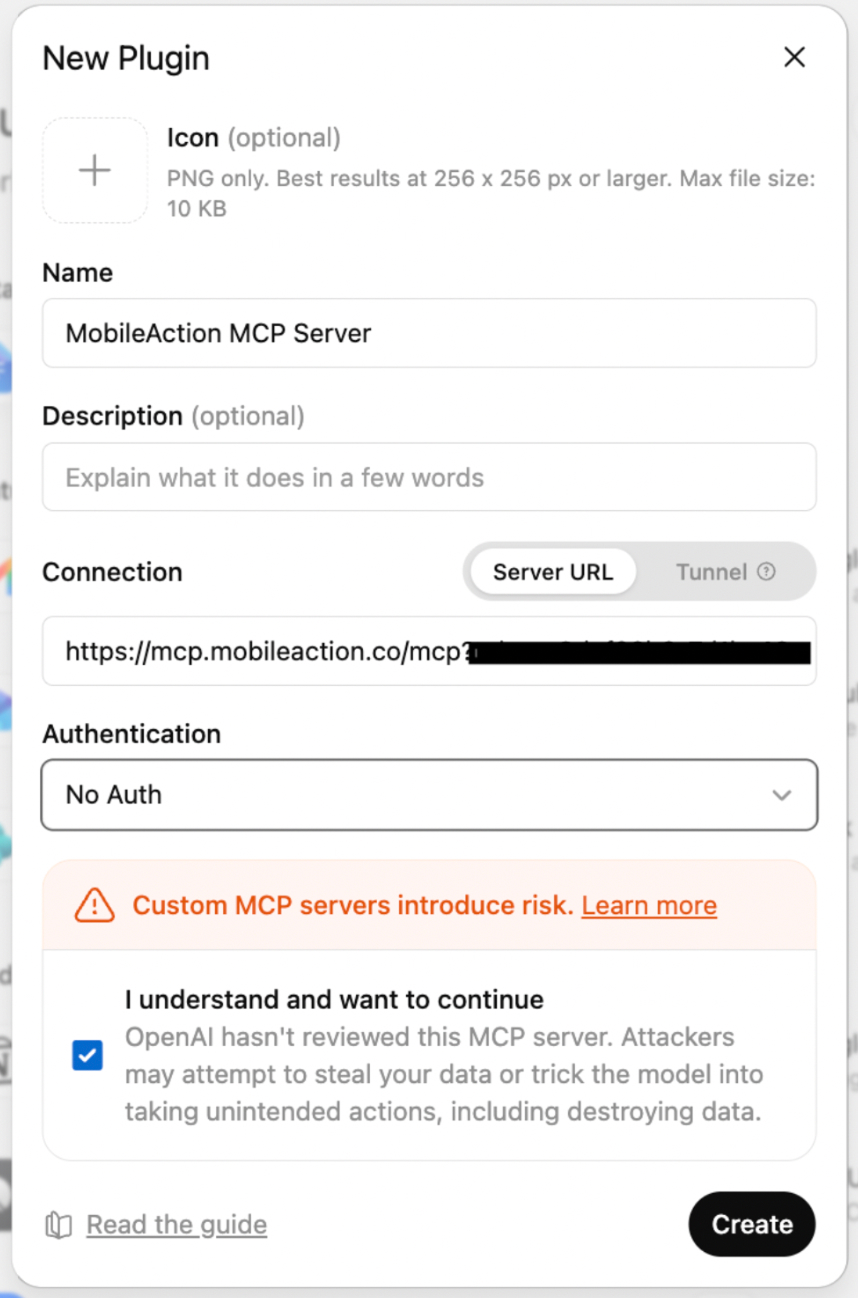
Add the following details:
- Name: MobileAction MCP Server
- Description (optional): Access MobileAction app growth and Apple Ads reporting data in ChatGPT.
Enter the MobileAction MCP server URL with your token under Connection:
https://mcp.mobileaction.co/mcp?token=YOUR-API-TOKENReplace YOUR-API-TOKEN with the token provided by your Customer Success Manager. The token in the URL handles authentication, which is why the next step uses No Auth.
- Under Authentication, choose No Auth.
- Create the connection by clicking Create.
- Wait while ChatGPT scans the tools and metadata provided by the server.
- Review the detected tools and complete the setup.
TIP
ChatGPT supports remote MCP servers through streaming HTTP and accepts server URLs that include the /mcp path.
Step 3: Add MobileAction to a conversation
Once the connection is created, you can select it when starting a conversation.
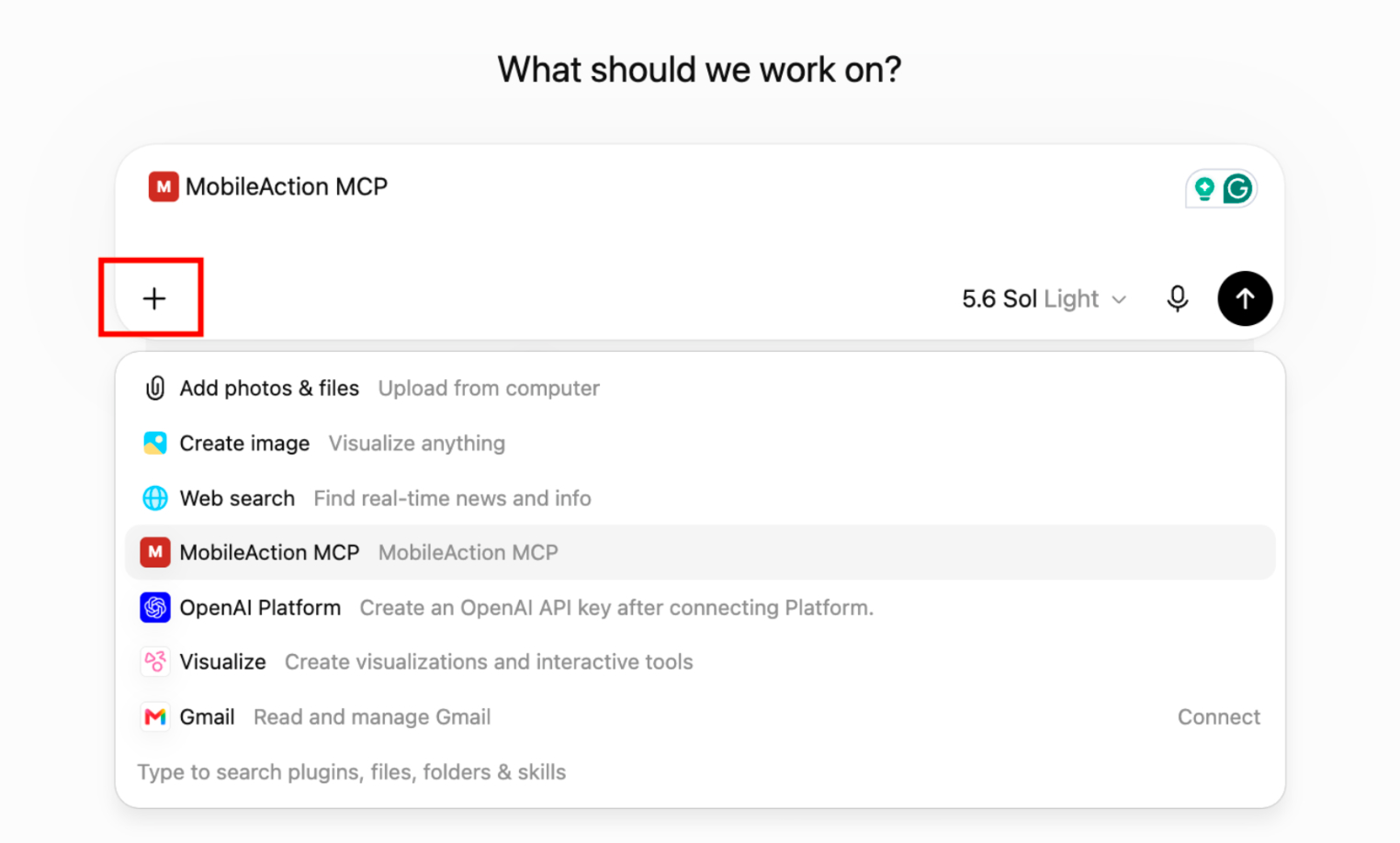
- Start a new chat in ChatGPT.
- Open the
+or Tools menu in the message box. - Select Developer mode.
- Choose MobileAction MCP Server from the available apps.
- Enter your question.
You only need to create the connection once. After that, you can select it in any supported conversation where you want ChatGPT to work with MobileAction data.
Step 4: Ask your first question
Now that MobileAction is selected, try prompts such as:
- “Use MobileAction to show my top 20 keywords for [app name] on the App Store in the US. Which keywords moved this week?”
- “Pull download estimations for [competitor app] over the past 90 days and compare them with ours.”
- “Summarize the most common complaints in the recent App Store reviews for [app name].”
- “Which networks is [competitor app] running the most video creatives on?”
- “Use MobileAction to summarize the last 30 days of my Apple Ads campaign performance.”
- “Show me an example request for the keyword ranking endpoint.”
- “Prepare a weekly app visibility summary that I can paste into Slack.”
TIP
ChatGPT selects the relevant MobileAction tools based on your request, retrieves the data, and works with the results in the conversation. You can then ask follow-up questions or request a different format, such as a table, summary, or report.
What ChatGPT can and cannot do
Through this connection, ChatGPT reads and reports data from your MobileAction account. It can summarize results, compare apps, identify changes, and organize findings for further review.
The MobileAction MCP server is reporting- and data-retrieval focused. It does not make changes to your MobileAction account or your Apple Ads campaigns. Interpretation, strategy, and campaign decisions remain with you and your team.
Keep in mind!
Requests made through ChatGPT draw from the same MobileAction API credit allowance as direct API calls.
Troubleshooting
I cannot see Developer mode, why? Confirm that you are using ChatGPT on the web. Developer mode access may also depend on your plan, workspace policy, and role. If you use a company workspace, ask your ChatGPT admin or owner whether custom MCP apps are permitted.
ChatGPT cannot connect to the MobileAction server. Check that the server URL contains the full /mcp path and your token:
https://mcp.mobileaction.co/mcp?token=YOUR-API-TOKENYou should also confirm that the required authentication process has been completed. If ChatGPT cannot scan the tools, contact your Customer Success Manager or use live chat.
ChatGPT answers from general knowledge instead of MobileAction data. Start a new conversation and check that the MobileAction MCP Server is selected under Developer mode. You can also begin your prompt with “Use MobileAction” and state that ChatGPT should not use other data sources for the request.
I reached a limit, why? Requests made through the MCP server use your MobileAction API credits. Check your remaining allowance in the MobileAction platform or contact your Customer Success Manager for more information.